
A slow internet connection at home can be frustrating. Videos keep buffering, online meetings lag, games disconnect, and even simple websites take time to load. In today’s world, where work, study, and entertainment all depend on the internet, slow WiFi can affect daily productivity.
Many people assume that slow speed always means upgrading to a more expensive plan. But that’s not always true. In my experience helping friends, family members, and home users fix their internet issues, most speed problems are caused by simple factors like poor router placement, too many connected devices, or incorrect settings.
The good news is that you don’t need technical knowledge or complicated tools. Small adjustments can significantly improve internet speed of your home WiFi.
In this guide, we’ll cover practical, safe, and proven steps to improve internet speed on your home router. These methods are beginner-friendly, legal, and suitable for everyday users.
Why Your Home WiFi Feels Slow
Before fixing the issue, it’s important to understand why speed drops happen.
Common reasons include:
- Router placed in the wrong location
- Too many devices connected
- Thick walls blocking signals
- Old router hardware
- Outdated firmware
- Background downloads
- Network interference
Even a fast broadband plan can feel slow if these basic problems are not addressed.
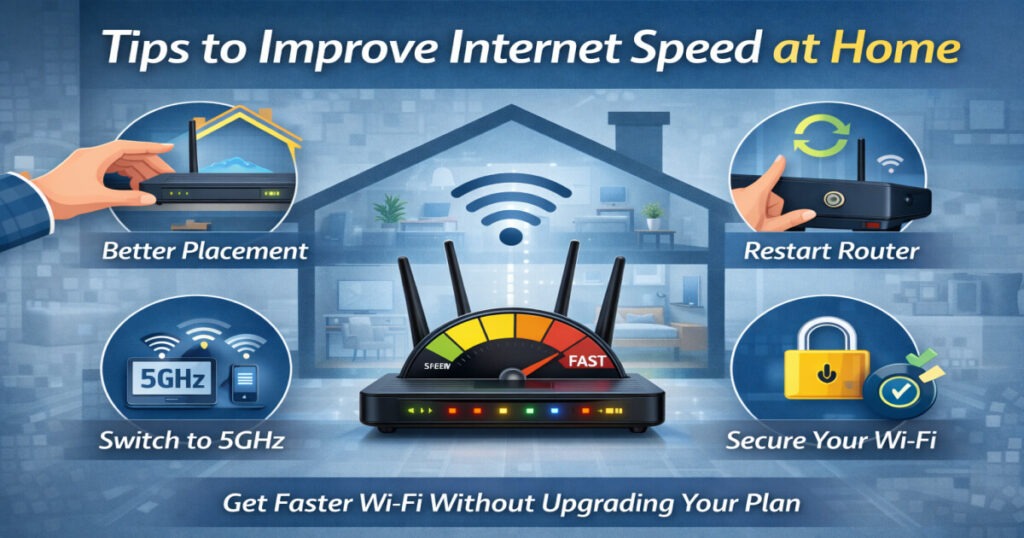
Place Your Router in the Right Location (Most Important Step)
This is the most overlooked factor, yet it makes the biggest difference.
From real-world experience, simply moving the router to a better position has doubled the speed in many homes.
Best placement tips:
- Keep router in the center of the house
- Place it at a higher position (table or shelf)
- Avoid corners or closed cabinets
- Keep away from walls and metal objects
Avoid:
- Inside drawers
- Behind TVs
- Near microwaves or refrigerators
WiFi signals spread outward like waves. A central and open location gives better coverage everywhere.
Restart Your Router Regularly
Just like smartphones and computers, routers also slow down when running continuously for long periods.
Restarting clears temporary memory and refreshes the connection.
What I personally suggest:
- Restart once every 3–4 days
- Or whenever speed drops suddenly
Simply turn it off for 2 minutes, then turn it back on.
It’s a small step but surprisingly effective.
Reduce the Number of Connected Devices
Every connected device shares your internet bandwidth.
If multiple devices are:
- Streaming videos
- Downloading updates
- Playing online games
- Uploading files
speed gets divided.
Tips:
- Disconnect unused devices
- Turn off WiFi on idle phones/TVs
- Limit background downloads
In many homes, removing just 3–4 extra devices noticeably improve internet speed.
Use the 5GHz Band Instead of 2.4GHz
Modern routers offer two WiFi bands:
2.4GHz
- Longer range
- Slower speed
- More interference
5GHz
- Faster speed
- Less interference
- Shorter range
If you’re sitting close to the router, always use 5GHz. From experience, switching to 5GHz often gives 30–50% faster performance.
Update Router Firmware
Routers receive updates just like phones. These updates:
- Fix bugs
- Improve stability
- Enhance speed
- Increase security
Many users never update their router for years.
How to update:
- Login to router admin panel
- Check firmware update section
- Install latest version
Updated firmware often improve internet speed performance instantly.
Secure Your WiFi Network
If your WiFi is not password-protected or uses a weak password, neighbors or unknown users might connect and consume bandwidth.
This slows your internet without you realizing it.
Best practices:
- Use strong password
- Enable WPA2 or WPA3 security
- Avoid sharing password unnecessarily
Once I changed a weak password for a friend, that improve Internet speed because extra users were removed automatically.
Reduce Interference from Other Devices
WiFi signals can be disturbed by:
- Microwave ovens
- Bluetooth devices
- Cordless phones
- Thick walls
- Other nearby routers
Tips:
- Keep router away from electronics
- Change WiFi channel in settings
- Use 5GHz band when possible
Less interference = more stable connection.
Use Ethernet for Heavy Tasks
For activities like:
- Online gaming
- Video editing uploads
- Office work
- Streaming in 4K
Ethernet provides a more stable connection than Wi-Fi.
From experience, wired connections always provide:
- Lower latency
- More stable speed
- No signal drops
Use cable for devices that stay fixed like PCs or smart TVs.
Upgrade Old Router Hardware
If your router is 4–5 years old, it may not support modern speeds.
Older routers:
- Handle fewer devices
- Have weaker signals
- Support outdated standards
Consider upgrading if:
- Frequent disconnects
- Very low speed
- Old WiFi standard
A newer router with latest WiFi technology can significantly improve coverage and speed.
Clear Background Usage
Sometimes internet feels slow because apps are secretly using data in the background.
Common culprits:
- System updates
- Cloud backups
- Large downloads
- Streaming apps
Tips:
- Pause updates during work hours
- Limit automatic downloads
- Schedule backups at night
Managing background usage keeps speed available when you need it.
Add WiFi Extenders for Large Homes
In bigger houses, the signal may not reach every corner.
Instead of upgrading your plan, you can use:
- WiFi extender
- Mesh WiFi system
- Additional access points
This improves coverage without increasing cost.
I’ve seen mesh systems solve dead-zone issues completely in large homes.
Test Your Internet Speed Properly
Before assuming the problem, always test speed.
Steps:
- Use reliable speed test tool
- Test near router
- Test far from router
If speed is good near router but slow far away → signal issue
If slow everywhere → ISP issue or router problem
This helps you find the real cause.
Common Myths on Improve Internet Speed
“Higher plan always fixes everything”
- Not always. Placement and settings matter more.
“More antennas mean faster speed”
- Antennas help coverage, not always speed.
“WiFi and wired are the same”
- Wired is usually more stable and faster.
Understanding these myths saves money and effort.
Simple Weekly Maintenance Checklist
To keep your WiFi fast:
- Restart router
- Remove unused devices
- Check updates
- Place router properly
- Secure network
These habits maintain long-term performance.
FAQs
Q. How often should I restart my router?
A. Once every few days or when speed drops.
Q. Is 5GHz always better?
A. Better for speed, but range is shorter.
Q. Can walls slow WiFi?
A. Yes, thick walls reduce signal strength.
Conclusion
Improve internet speed at home doesn’t always require expensive upgrades or technical skills. Most slow internet issues come from simple causes like poor router placement, network congestion, or outdated settings.
From personal experience, small changes like moving the router, switching bands, restarting regularly, and managing connected devices can dramatically improve Internet speed.
By following these practical steps, you can enjoy faster browsing, smoother streaming, and more reliable internet throughout your home.
A little optimization goes a long way.