
Android Phone Faster are powerful, but over time, they can start to feel slow. Apps take longer to open, scrolling becomes laggy, and the battery drains faster. This is a common issue for many users, but the good news is that you don’t need a new phone to improve performance.
In this guide, we’ll show you 5 easy, practical steps to speed up your Android phone. Each step is beginner-friendly, requires no technical expertise, and ensures your phone runs smoothly without compromising your data or security.
Why Cache Affects Performance
Cache is temporary data stored by apps to help them load faster. Over time, it can build up and take valuable storage, slowing down your phone.
How to Clear Cache
Open Settings → Storage → Cached Data (on some devices, it’s under Apps).
Tap Clear Cache to remove temporary files.
For individual apps: Go to Settings → Apps → select app → Storage → Clear Cache.
Remove Unused Apps
Review all installed apps and remove ones you rarely use.
Unused apps take storage and run background processes, affecting speed.
Tip: Keep only essential apps for daily use.
Note: “Clear cache and remove unused apps on Android phone faster performance.”
Step 2: Optimize Battery and Performance Settings
Why It Matters
Android phones include power-saving and performance optimization tools. Properly configuring these improves speed, reduces background drain, and extends battery life.
Steps to Optimize
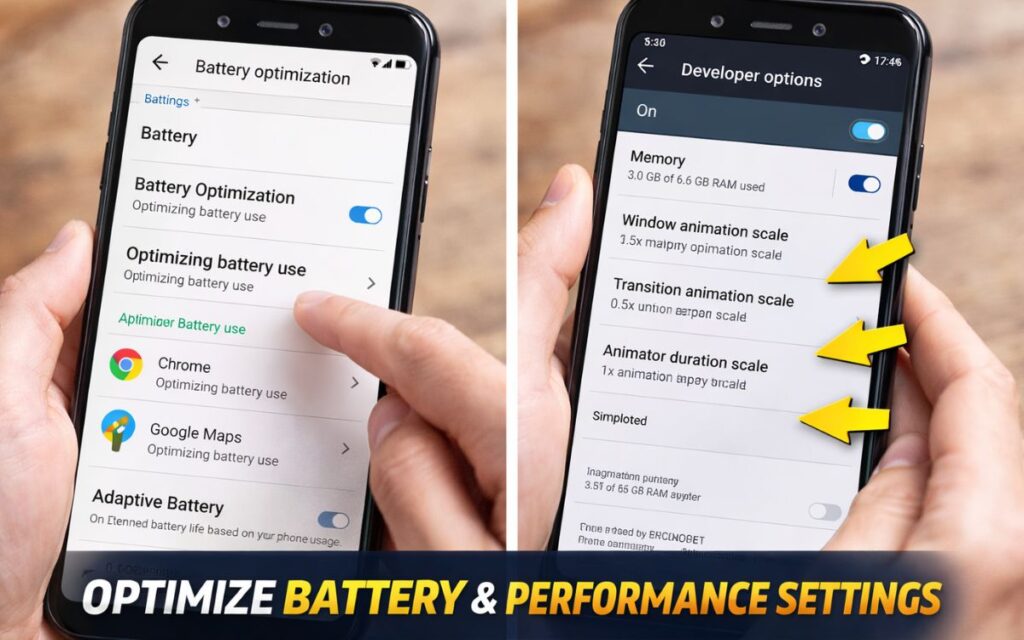
Open Settings → Battery → Battery Optimization and enable optimization for all apps.
Turn on Adaptive Battery to limit background usage for apps you rarely use.
Reduce animations:
Settings → About Phone → tap Build Number 7 times → Developer Options → Window & Transition Animation Scale → reduce to 0.5x or turn off.
Result: Faster performance, smoother animations, and extended battery life.
Note: “Optimize battery and performance settings on to make Android phone faster”
Step 3: Remove Bloatware and Unnecessary Widgets
Understanding Bloatware
Many phones come with pre-installed apps (bloatware) that are rarely used. They consume storage, memory, and battery while running in the background.
How to Remove or Disable Bloatware
Go to Settings → Apps → All Apps.
Select apps you don’t need → Disable or Uninstall (if allowed).
Avoid disabling essential system apps to prevent errors.
Limit Widgets on Home Screen
Widgets constantly refresh data → can slow performance.
Keep only necessary widgets like Clock or Calendar.
Tip: Less clutter = faster phone.
Note: “Remove bloatware apps and unnecessary widgets from Android phone faster”
Step 4: Update Software and Apps Regularly
Why Updates Help
Software updates fix bugs, improve speed, and enhance security. Outdated apps or system versions can cause lag and poor performance.
How to Update Android
Settings → System → Software Update → Check for updates
Open Google Play Store → My Apps & Games → Update All
Pro Tip: Enable automatic updates to keep your device optimized without manual effort.
Note: “Update Android system and apps for improved you android phone faster performance”
Step 5: Restart Your Phone and Monitor Performance
The Power of a Restart
Restarting clears temporary files, stops unnecessary background processes, and refreshes memory.
How Often?
Restart every 2–3 days for regular users
More often if your phone feels laggy
Tools to Monitor Performance:
Samsung: Device Care
Other phones: built-in Phone Manager or memory/CPU monitoring apps
Result: Faster, smoother, and more responsive Android experience.
Note: “Restart Android phone and monitor performance for faster speed”
Tips for Long-Term Performance Android Phone Faster
- Limit Background Apps: Settings → Developer Options → Background Process Limit
- Use Light Versions of Apps: Facebook Lite, Messenger Lite, etc., save memory and improve speed
- Avoid Live Wallpapers: Live wallpapers consume memory and battery → use static ones
- Free Up Storage Regularly: Photos, videos, and downloads take up space → move to cloud or external storage
Written by Rahul – Tech Content Researcher at Infogira.com, sharing practical Android performance tips based on documentation, updates, and real-world user issues.
Conclusion
Sluggish Android phones don’t always need a replacement. Bookmark this guide so you can revisit it every 2–3 months and keep your Android phone running smoothly.
- Step 1: Clear cache & unused apps
- Step 2: Optimize battery & performance settings
- Step 3: Remove bloatware & unnecessary widgets
- Step 4: Update software & apps
- Step 5: Restart & monitor performance
Regular maintenance, combined with these simple tips, ensures your Android device performs like new and lasts longer.
FAQ – How to Speed Up Your Android Phone Faster
Q1: Why is my Android phone slow?
A: Too much cache, unused apps, background processes, or outdated software can slow your phone.
Q2: Does clearing cache help?
A: Yes. It removes unnecessary temporary files and improves performance.
Q3: How often should I restart my phone?
A: Every 2–3 days to refresh memory and stop background processes.
Q4: Will removing apps and widgets improve speed?
A: Yes. Unused apps and live widgets consume memory and slow the phone.
Q5: Do software updates improve performance?
A: Absolutely. Updates fix bugs and enhance speed.
Q6: Tips to keep my phone fast long-term?
A: Limit background apps, use lite versions of apps, avoid live wallpapers, and free up storage regularly.
Q7: How can I contact Infogira for feedback or questions?
A: You can reach us through our Contact Us page.